Organize
Items and reminders
Save notes, categories, and important dates. Add local reminders and see an active-item category pie on Home and detailed reminders and dates on Dashboard.
LifeAssist-AI · iPhone & iPad
Keep receipts, documents, important dates, and reminders together. Scan what you need, save it with an Item, and find it again on your iPhone or iPad.
Version 1.0 · Coming soon for iPhone & iPad
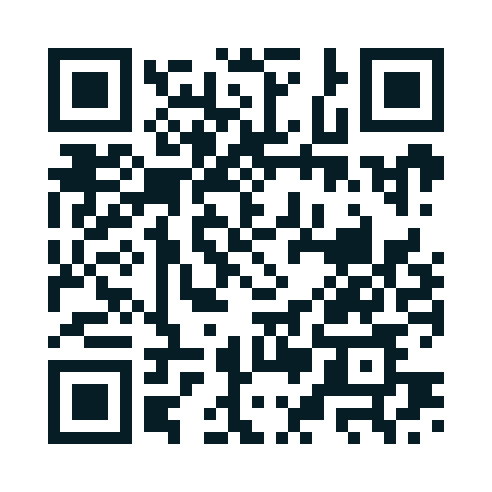
Coming soon. The App Store link and QR code will work after release.
Organize
Save notes, categories, and important dates. Add local reminders and see an active-item category pie on Home and detailed reminders and dates on Dashboard.
Capture
Attach files and photos, or scan multiple pages into a PDF. Keep related documents with the Item they belong to.
Find
Recognize text in images and scans, extract embedded PDF text, and search your Items, file names, and saved text. Matching words are highlighted; short searches match whole words.
Save
Capture codes and store their values alongside an Item for later reference.
Use
Open supported images, text files, and PDFs. Share or print attachments and extracted text when you choose.
Keep local
Your records live in the app’s private storage. Core features work offline, without a sign-up step.
Home has four responsive square icon buttons: Vault, Capture, Voice, and Form. Each opens its action directly. The welcome card starts expanded. Press and hold for help on iPhone; hover for help on iPad. The buttons use the app icon’s blue-to-cyan gradient with bold labels. The Home pie shows every active ordinary-item category, including one-item categories; tap Legends for colors and exact counts. The highlighted reminder alert separates Past and Upcoming counts and lists expired items separately.
Browse categories in My Stuff, carry a selected category into Add, and find your way back without losing your place. See highlighted matching words in Search and select an attachment or code in Item Details to use one shared action area. Private Secure Vault brings passwords, secure documents, notes/codes, and other secure records into separate compact sections. Unlock with Face ID, Touch ID where supported, or your device passcode. Vault items stay outside ordinary Search and ordinary item backups. Comfortable layouts, five color palettes, Light and Dark appearance, and larger text support make the app easier to read on iPhone and iPad.
Keep typed notes, reviewed Voice Input, and a photo, scan, file, or code together in one Add draft. The header Save creates one record. Choose an item type and its matching alphabetical categories; suggested notes help you fill only what matters.
Expand grouped details when needed. Summaries distinguish saved content from empty sections. Set date-linked or independent reminders, edit existing alerts, or use Cancel Reminder when an alert is no longer needed. Archive records for later, restore them with confirmation, or permanently delete selected archived items after making a verified backup.
Capture has three square icon buttons under Camera Inputs and two under File Inputs. Tap a method to open it directly. Press and hold for help on iPhone or hover on iPad; general preview guidance stays below the buttons. The five methods let you scan paper pages into a PDF, take a photo, save a QR/barcode value, import a file, or reuse a library image. In Item Details, Add Code opens the scanner directly. Attachment cards keep View, Delete, and Extract Text together; Share and Print are inside View, and Full Text opens recognized text.
Read the updated user guide or browse frequently asked questions.
Inside the app
Screens captured from version 1.0.0, build 10 on iPad. Vault examples are fictional; passwords and secure values remain hidden. Sample records and documents are for demonstration.


Inside Private Secure Vault
Manage passwords, secure documents, notes and codes, and other secure records in separate sections. Device authentication protects access. The fifth option, Vault Backup & Restore, saves an encrypted portable copy of all four sections, including secure documents. Restore requires the matching recovery key and device authentication; keep the key separately from the backup. Ordinary Settings backups exclude Vault data.


These examples are fictional. Passwords and secure values remain hidden.
See the workflows
Home, exact chart legends, Dashboard, My Stuff, and browsing Search on iPad.
Review Camera Inputs and File Inputs, then view a saved sample PDF with Share and Print available.
Explore passwords, secure documents, notes/codes, and other secure records, then review encrypted Vault Backup & Restore. Examples are fictional; passwords, secure values and recovery keys stay hidden.
These silent website previews show build 10 recorded in the iPad simulator. Clips are trimmed for length. They show capture choices, an existing sample attachment, fictional Vault examples, and encrypted backup controls; they do not demonstrate a new scan, completed backup, or restore. Document scanning requires a supported camera-capable device.
A simple routine
Give a receipt, household record, or important document a place with a title and notes.
Attach a document, scan a page or code, and set a reminder for an important date.
Browse My Stuff, check Dashboard, or search for information from saved documents.
Your information
Version 1.0 stores your records on your device and runs text recognition locally. It has no ads, account requirement, or live cloud AI service. Documents leave the app when you choose a sharing or printing destination.
Use LifeAssistAI app Settings menu → Backup & Restore to save a manual backup of ordinary records and attachments outside the app. Restore ordinary items on the same or a new iPhone/iPad from the saved file. Existing same-ID records are kept. There is no automatic cloud sync. Private Secure Vault data is excluded from ordinary item backups. Inside the unlocked Vault, use its separate encrypted Backup & Restore with an owner-held recovery key for the same or another iPhone/iPad. Recreate reminder alerts after either restore. Read the backup and restore guide.
LifeAssist-AI for iPhone & iPad
Keep documents, notes, dates, and private essentials together.
Coming soon on the App Store. The link and QR code will open the listing after release.
Coming soon on theApp StoreCheck for updates after release. Explore the user guide, find support, or contact us.